Photography has always been about capturing light — but a quiet revolution is changing what happens after the shutter clicks. Generative AI, the family of models that create brand-new pixels from a text prompt, has moved out of the research lab and into the tools millions of photographers open every day. Adobe Photoshop’s Generative Fill, Google’s Magic Editor, and Samsung’s Galaxy AI can erase a photobomber, extend a cropped horizon, or swap a dull sky in seconds. Tasks that once took an hour of careful clone-stamping now take a few words and a tap. Here’s how the technology works, what the major tools can do, and the questions of authenticity every photographer should weigh before publishing an AI-edited image.
What Is Generative AI in Photo Editing?
Traditional edits adjust pixels that already exist — brightness, contrast, color, and sharpness. Generative AI goes a step further: it invents pixels that were never in the frame. When you circle an object and ask the software to remove it, the model doesn’t simply blur the area out. It studies the surrounding scene — the direction of the light, the cast of shadows, the perspective and surface texture — and synthesizes a replacement that blends seamlessly.
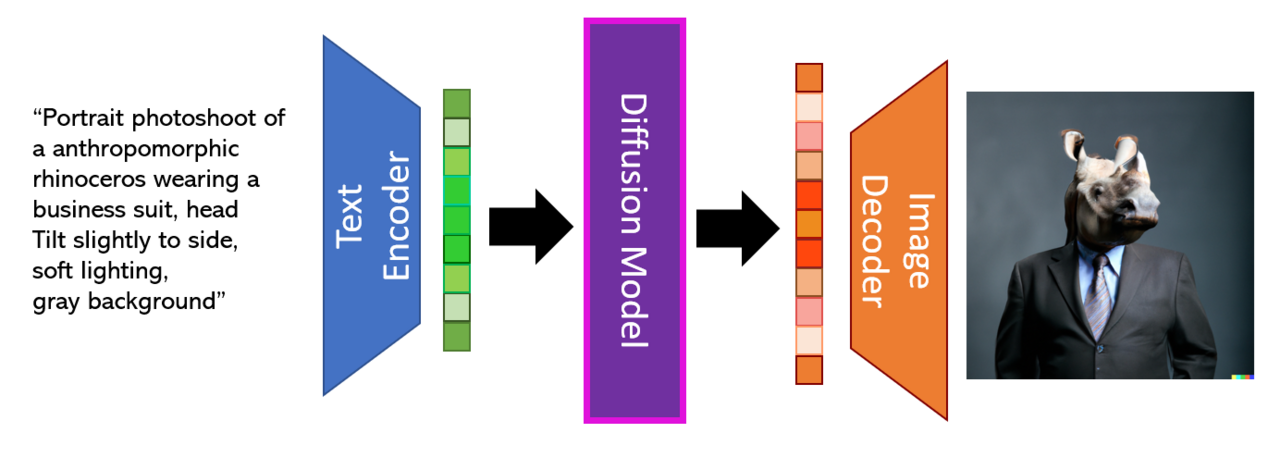
The engine under the hood is the diffusion model. Trained on enormous collections of images, these models learn to reverse a process that progressively adds noise to a picture, effectively “denoising” random pixels into a coherent image guided by a text prompt. The same machinery that generates a photo from scratch also powers the inpainting and outpainting used to remove, replace, or expand parts of an existing photo.

The Big Players: Adobe, Google, and Samsung
Three ecosystems dominate consumer and professional generative editing today, and each takes a different approach.
Adobe Firefly and Generative Fill
Adobe built Firefly to be “commercially safe” from the start, training it on licensed content such as Adobe Stock and on public-domain material where copyright has expired. The current Firefly Image 3 model powers Generative Fill and Generative Expand inside Photoshop, along with Generate Background, Generate Similar, and Generate Image, which brings text-to-image directly into the app. Adoption has been fast: Adobe reports that Generative Fill was adopted at ten times the rate of other popular Photoshop features, and that Firefly has been used to generate more than 7 billion images since its March 2023 debut.
Google Magic Editor
On Pixel phones, Magic Editor is Google’s mobile-first take on the same idea. Powered by Google’s Imagen and Gemini-era models, it lets you circle an unwanted object, tap to remove it, and watch the phone reconstruct the background — running on-device for small edits and routing larger jobs to Google’s cloud. Magic Editor also handles face blending with Best Take and can move or resize subjects within the frame.
Samsung Galaxy AI
Samsung’s Generative Edit, part of the Galaxy AI suite on the S24 series and newer, offers comparable object removal directly in the Gallery app, plus the ability to move, resize, or erase subjects. Apple has joined the race too: Clean Up, introduced in iOS 18.1, brings similar generative erasing to the Photos app.
What These Tools Do Well — and Where They Fail
Generative editing shines on four everyday tasks: removing distracting objects, expanding a frame beyond its original edges (outpainting), replacing skies or backgrounds, and sharpening fine detail. When the background is clean and predictable — sky, pavement, a blank wall — results are often indistinguishable from an in-camera capture.
The tools are far less reliable when the scene is complicated. Fine hair and foliage, reflective or wet surfaces, repetitive patterns (which tend to produce tell-tale tiling), and overlapping shadows all break the illusion. Heavy JPEG compression makes it worse. The practical rule is simple: inspect every generative edit at 100 to 300 percent zoom, especially along edges and shadows, and be ready to re-run or refine the selection.
Authenticity, Provenance, and the Question of “Real”
As edits become invisible, the conversation shifts from “can I” to “should I.” Adobe tackles this with Content Credentials — tamper-evident metadata it describes as “a nutrition label for digital content” — automatically attached to Firefly-powered edits. That matters to audiences: in an Adobe study, 76 percent of U.S. consumers said it is important to know whether online content is AI-generated. Google and Samsung have been slower to embed persistent edit history into exported JPEGs, so provenance often gets lost the moment a file leaves the phone. The takeaway: for journalism, legal, or evidentiary images, generative edits should be disclosed — or avoided altogether.
Conclusion
Generative AI is no longer a gimmick; it is a standard part of the photo-editing toolkit. It removes drudgery and opens creative doors that were previously closed to all but the most skilled retouchers. But it also demands a new kind of literacy — knowing when to trust the fill, when to inspect it closely, and when to disclose it. The photographers who thrive will treat these models as collaborators, not replacements for the craft of light, timing, and composition.
FAQ
Is Adobe Firefly free to use?
Firefly-powered features run on Generative Credits. Adobe offers free plans with a monthly credit allocation, while paid Creative Cloud subscriptions include a larger pool; heavy use of Generative Fill or Generate Image consumes credits.
Do generative edits work on any photo?
Not equally. They perform best on uncluttered backgrounds. Complex edges — hair, foliage, reflections, and repeated patterns — can produce visible artifacts, so always inspect results at high zoom before exporting.
Can viewers tell a photo was AI-edited?
Not reliably. AI-detection tools exist but their accuracy is uneven. The most dependable signals are still human-spotted: soft edges, mismatched shadows, or repeated textures. Content Credentials embed provenance for Adobe’s tools.
Related Posts
Apple Deep Fusion and Photonic Engine Explained: How Your iPhone Computes a Photo
The modern iPhone does not simply capture light — it…

Multi-Frame HDR Fusion Explained: How Cameras Blend Exposures for Perfect Highlights and Shadows
Point your camera at a room with a bright window…

AI Object Removal and Inpainting: How Smart Erasers Rebuild Your Photos
A stranger wandering through your landscape shot, a power line…