Scan almost any camera spec sheet and you’ll bump into phrases like “14-bit RAW” or “10-bit 4:2:2 video.” Bit depth is one of the most misunderstood numbers in photography — people routinely confuse it with resolution, color gamut, or dynamic range. Stripped to its essence, bit depth tells you how many tonal values a camera can record for every pixel. That’s it. Once you understand it, you’ll know exactly when those extra bits matter and when they’re just marketing.

What Bit Depth Actually Means
Every digital photo is a grid of pixels, and each pixel stores a brightness value for three color channels: red, green, and blue. Those values are written in binary — strings of ones and zeros. Bit depth is simply how many binary digits (bits) are used to record each value.
Each extra bit doubles the number of possible values:
- 8-bit = 2⁸ = 256 levels per channel
- 10-bit = 2¹⁰ = 1,024 levels per channel
- 12-bit = 2¹² = 4,096 levels per channel
- 14-bit = 2¹⁴ = 16,384 levels per channel
- 16-bit = 2¹⁶ = 65,536 levels per channel
Because an image has three channels, the total color count scales fast: an 8-bit image can display 256³ ≈ 16.7 million colors, while a 10-bit image can represent 1,024³ ≈ 1.07 billion colors.
Where the Bits Live: JPEG, RAW, and Video
Bit depth isn’t one fixed number for a camera — it changes with what you’re shooting and saving. Here’s where each depth shows up in the real world:
| Format / use | Typical bit depth | Levels per channel |
|---|---|---|
| JPEG (finished image) | 8-bit | 256 |
| HEIF / HDR stills (smartphones) | 10-bit | 1,024 |
| RAW (most APS-C & full-frame cameras) | 12–14-bit | 4,096–16,384 |
| RAW (medium format, e.g. Fujifilm GFX) | 16-bit | 65,536 |
| Video, H.264 (standard) | 8-bit | 256 |
| Video, H.265 / ProRes / log | 10-bit | 1,024 |
| Cinema RAW video | 12-bit | 4,096 |
A quick note on that “14-bit RAW” spec: when Sony, Canon, or Nikon advertise 14-bit RAW, it means the sensor’s analog-to-digital converter (ADC) digitizes each pixel’s signal into one of 16,384 brightness steps before any processing. A JPEG is the 8-bit, compressed, tone-mapped result of that same data. The moment you save as JPEG, you throw away the vast majority of those steps.
Bit Depth vs Dynamic Range — Not the Same Thing
The most common mix-up is assuming 14-bit means “14 stops of dynamic range.” It doesn’t. Dynamic range measures the physical span between the darkest and brightest detail a sensor can capture, in stops. Bit depth measures how finely that span is sliced into discrete steps. Think of dynamic range as the height of a staircase, and bit depth as the number of steps. A short staircase with many tiny steps (high bit depth, low DR) looks smooth but doesn’t reach far. A tall staircase with few steps (high DR, low bit depth) reaches far but looks jagged. More bits give smoother tonal gradations, but they don’t add physical light-capturing range.
Where You Actually See the Difference
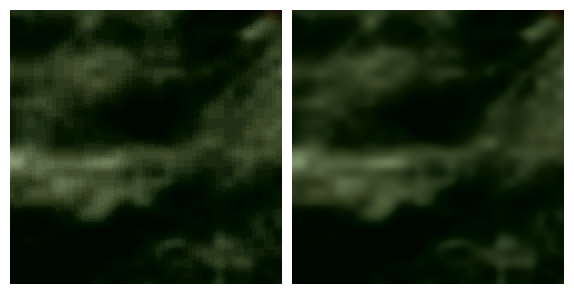
1. Banding in smooth gradients. Skies, sunsets, and gradients are where 8-bit shows its limits. Push an 8-bit JPEG’s tones in editing and you’ll see “banding” — visible stripes instead of a smooth transition. The image below shows the same gradient at 8-bit and 16-bit:
2. Shadow recovery. Lift the shadows of a dark 8-bit JPEG and you’ll often reveal noise and posterization, because there aren’t enough tonal steps down there. A 14-bit RAW file holds far more subtle detail in the shadows, so the same +2 or +3 EV lift stays clean.
3. Heavy editing and grading. Every adjustment — exposure, contrast, curves — re-maps the tonal values, stretching the gaps between steps. The more you edit, the faster a low-bit-depth file runs out of slack and falls apart.
8-bit vs 10-bit Video — Why Filmmakers Care
The same logic applies to video, but the stakes are higher because log profiles compress a wide dynamic range into a limited code space. An 8-bit H.264 clip survives light tweaks, but push it in a color grade and the image breaks into banding and blotchy skin tones. That’s why “10-bit 4:2:2” has become a headline spec on hybrid cameras: 10-bit gives four times the tonal steps of 8-bit, and the extra chroma sampling preserves color detail. For serious grading, 10-bit log is widely considered the minimum, with 12-bit RAW video offering still more headroom.
What Should You Actually Use?
- Casual JPEG shooters: 8-bit is perfectly fine — a well-exposed JPEG looks great on any screen.
- Photo editors: shoot 14-bit RAW (or 12-bit, if that’s what your camera offers); the shadow recovery and editing latitude are worth the larger files.
- Hybrid shooters and filmmakers: enable 10-bit recording if your camera supports it, especially when shooting log.
- HDR and print work: a 10-bit HEIF or 16-bit TIFF/PSD workflow keeps gradients clean from capture to output.
One caveat: almost every monitor and phone screen is still 8-bit. So the benefit of high bit depth isn’t in what you see on screen — it’s in what survives your edits.
Conclusion
Bit depth is a simple idea with real consequences: it decides how smoothly your camera records tones. Eight bits is plenty for a finished, correctly-exposed image. But the moment you start recovering shadows, editing heavily, or grading video, the extra bits in a 14-bit RAW or 10-bit file are what keep your gradients smooth and your edits clean. Next time a spec sheet brags about bit depth, you’ll know exactly what you’re paying for — and whether you actually need it.
FAQ
Is 14-bit always better than 12-bit?
Not visibly, in most real shots. 14-bit gives four times the tonal steps of 12-bit, which matters mainly for extreme shadow pushes. Some cameras drop to 12-bit in high-speed or electronic-shutter modes — the difference is usually imperceptible unless you’re doing aggressive editing.
Does bit depth affect file size?
Yes. More bits per pixel means more data. A 14-bit RAW carries roughly 1.75× the data of an 8-bit image at the same resolution, before compression, and 16-bit TIFFs are about twice the size of 8-bit TIFFs.
Can I even see the difference on my screen?
Mostly not. Standard displays are 8-bit, so they can’t show more than 256 levels per channel anyway. The value of high bit depth appears when you edit the file, not when you view the finished result.
Related Posts
Back-Illuminated Sensors Explained: How BSI Changed Low-Light Photography
Flip over almost any modern camera or smartphone and the…
Lens Aberrations Explained: Chromatic Aberration, Distortion, and Vignetting
Every lens is a compromise. Glass bends light, but it…
Log Video Profiles Explained: How S-Log3, C-Log3, and V-Log Capture More Dynamic Range
Point a camera with a log profile enabled at a…